Losing data can feel like staring into a void, a sudden, jarring emptiness where important information once resided. Whether it’s a critical project document, precious family photos, or essential financial records, the absence of data can trigger stress and panic. Fortunately, we are not entirely powerless against this digital ailment. This guide aims to equip you with the knowledge and actionable steps required to navigate the often-turbulent waters of data recovery. We will explore common causes of data loss and provide a structured approach to retrieving what has slipped through your grasp.
Before we embark on the recovery journey, it is crucial to understand the landscape we are navigating. Data loss rarely happens in a vacuum; it is usually a consequence of specific events or circumstances. Identifying the root cause is often the first, albeit sometimes painful, step towards resolution. Think of it as diagnosing an illness before administering a remedy.
Accidental Deletion and Formatting
The most frequent culprit is often our own hand. Accidental deletion is remarkably common. We might click the “delete” button too hastily, move files to a “recycling bin” that is then emptied, or simply lose track of where we saved something. Similarly, accidental formatting of a drive, while seemingly catastrophic, sometimes leaves a glimmer of hope for recovery. This is akin to throwing away a valuable item, only to realize moments later that it was still within reach.
Hardware Failures
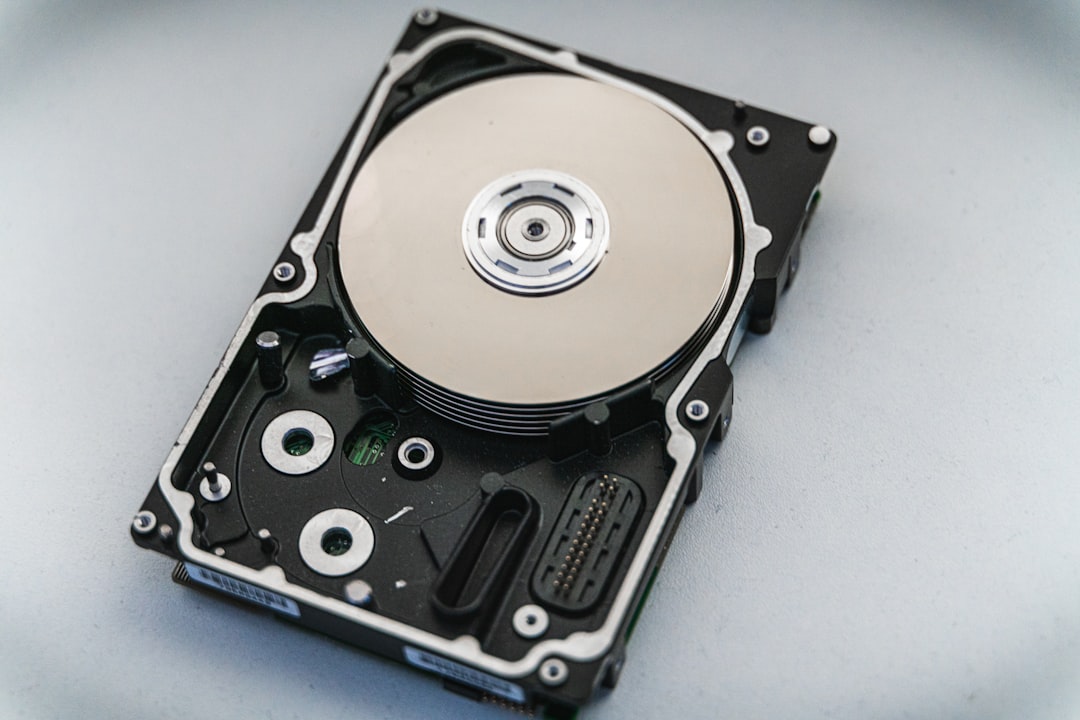
Our electronic companions are not immortal. Hard drives, SSDs, USB drives, and other storage devices are mechanical or electronic components that can degrade over time or fail unexpectedly. This can manifest as clicking noises from a hard drive, a USB drive that is no longer recognized by the computer, or corrupted files that refuse to open. A hardware failure is like a ship taking on water; immediate action is needed to prevent complete submersion of your data.
Physical Damage
Beyond mere electronic failure, storage devices are susceptible to physical trauma. Dropping a laptop, spilling liquid on a computer, or even extreme temperature fluctuations can inflict irreparable damage on the delicate components within a storage device. This type of damage often requires specialized intervention, as the physical integrity of the drive has been compromised.
Logical Failures
Logical failures, on the other hand, do not involve visible physical damage. These occur when the file system structure of a drive becomes corrupted, making it impossible for the operating system to access or interpret the data. This can be caused by power surges, improper shutdowns, or software glitches. It is like trying to read a book with its pages jumbled and out of order; the information is there, but its organization is lost.
Software Corruption and Malfunctions
The software that governs our digital lives can also be a source of data loss. Operating system crashes, application errors, or faulty software updates can sometimes lead to data corruption or the accidental deletion of files. This is analogous to a faulty navigator providing incorrect directions, leading your digital vessel astray.
Operating System Issues
A beleaguered operating system, whether Windows, macOS, or Linux, can be a harbinger of data loss. Errors within the OS can corrupt existing files or prevent access to storage devices. This is especially true during major updates or when encountering malware.
Application-Specific Problems
Certain applications, particularly those that handle large amounts of data or have complex functionalities, can sometimes develop bugs or glitches that lead to data corruption or loss. Saving a document in a program that suddenly crashes can leave you with a blank page where your work used to be.
Malware and Viruses
In the digital realm, malicious software, commonly known as malware or viruses, poses a significant threat to our data. These unwelcome guests can encrypt files (ransomware), delete them, or corrupt them, leaving a trail of digital devastation. A virus attack is like an invasive species entering an ecosystem, disrupting the natural order and potentially wiping out valuable elements.
Ransomware Attacks
One of the most malicious forms of malware, ransomware, locks access to your files and demands payment for their decryption. This is a direct assault on your digital property, holding your information hostage.
Other Malicious Software
Beyond ransomware, other types of malware can cause widespread data corruption, make files unreadable, or even silently delete them without your knowledge.
The First Line of Defense: Prevention and Immediate Actions
While this guide focuses on recovery, it is imperative to acknowledge the power of prevention. However, even with the best preventative measures, data loss can still occur. Therefore, understanding immediate actions to take upon realizing data is lost is paramount. This is about damage control, minimizing the impact of the lost data.
Stop Using the Affected Device Immediately
This is perhaps the most critical step. If you suspect data has been lost from a specific drive (e.g., a USB drive, an internal hard drive, or an SSD), do not use it further. Continued use, especially writing new data, can overwrite the very files you are trying to recover, effectively burying them deeper into the digital soil. Think of it as stopping a leak; the more you let water flow, the more damage it causes.
Why Continued Use is Detrimental
When files are deleted, they are not immediately erased from the storage device. Instead, the space they occupied is marked as “available.” The actual data remains until it is overwritten by new information. Continuing to use a drive, even for casual browsing, can lead to these newly written files occupying the space of your lost data, making recovery significantly more difficult, if not impossible.
Identify the Type of Storage Media
The recovery process can vary depending on the type of storage media involved. Identifying whether the lost data resided on an internal hard drive, an external hard drive, an SSD, a USB flash drive, an SD card, or even a smartphone is an important initial step. Each type of media has its own nuances and potential failure modes. This is like knowing whether you are dealing with a sinking rowboat or a capsized freighter; the response and resources required will differ.
Document the Incident
It is beneficial to meticulously document how and when you believe the data loss occurred. Note any error messages you received, the sequence of events leading up to the loss, and the operating system and software you were using. This information can be invaluable if you need to seek professional help or even for troubleshooting the problem yourself. This record-keeping acts as a logbook, essential for piecing together the timeline of events.
Step-by-Step Recovery Strategies
With the initial precautions taken, we can now delve into the methods of data recovery. These approaches range from simple, built-in tools to more advanced software solutions.
Utilizing Built-in Operating System Tools
Our operating systems often come equipped with rudimentary recovery tools that can be surprisingly effective for certain types of data loss. These are the first, most accessible lifelines.
The Recycle Bin/Trash Folder
For accidentally deleted files, the first and simplest recourse is to check the Recycle Bin (Windows) or the Trash folder (macOS). If the files have not been permanently deleted or the bin/trash has not been emptied, they can usually be restored with a few clicks. This is akin to finding that item you thought was gone in the immediate vicinity.
File History (Windows) or Time Machine (macOS)
Many operating systems offer built-in backup solutions that can act as a time machine for your data.
- File History (Windows): If enabled, File History periodically backs up your files to an external drive or network location. You can use it to restore previous versions of files or folders.
- Time Machine (macOS): Time Machine automatically backs up your entire system, including files, applications, and settings, to an external drive. It allows you to go back in time and retrieve specific files or even an entire system state.
These backup utilities are the safety nets in our digital world, designed to catch us when we fall.
Employing Data Recovery Software
When built-in tools are insufficient, data recovery software becomes the next logical step. These programs are designed to scan storage media for deleted or lost files and attempt to reconstruct them.
How Data Recovery Software Works
Data recovery software bypasses the operating system’s file system and directly scans the raw data on the storage device. It looks for file signatures (unique patterns that identify file types) and attempts to reassemble data fragments into complete files. It’s like a detective meticulously sifting through fragmented evidence to reconstruct a coherent picture.
Choosing the Right Software
The market is flooded with data recovery software, ranging from free basic tools to comprehensive paid solutions. When selecting software, consider the following:
- Reputation and Reviews: Opt for well-established software with positive user reviews and a proven track record.
- Supported File Systems and Device Types: Ensure the software supports the file system of your drive (e.g., NTFS, FAT32, HFS+, APFS) and the type of device (HDD, SSD, USB, SD card).
- Ease of Use: Some software has more intuitive interfaces than others. If you are not technically inclined, opt for user-friendly options.
- Preview Functionality: A good recovery program will allow you to preview recoverable files before committing to a full recovery. This saves time and space by allowing you to select only the files you need.
Popular Data Recovery Software Options
While specific recommendations can change rapidly, some commonly cited and generally reliable data recovery software includes:
- Recuva (Windows): A popular free option for basic recovery needs.
- EaseUS Data Recovery Wizard (Windows/macOS): A widely recognized paid tool known for its effectiveness and user-friendly interface.
- Stellar Data Recovery (Windows/macOS): Another robust paid option offering advanced features.
- Disk Drill (Windows/macOS): A comprehensive recovery tool with a free version that offers limited recovery capabilities.
Remember to download software only from the official websites of the developers to avoid malware. Installing software on the same drive you are trying to recover data from can be counterproductive, as it might overwrite the very data you seek. It is often best to install the recovery software on a different drive or a separate computer.
When DIY Isn’t Enough: Professional Data Recovery Services
There are instances where the data loss is so severe, or the hardware so damaged, that attempting recovery yourself is either impossible or risks causing further irreversible damage. In these situations, engaging professional data recovery services is the most prudent course of action. This is the path to the expert surgeons when your digital well-being is on the line.
Recognizing When to Seek Professional Help
Several indicators suggest that professional intervention is necessary:
- Physical Damage to the Drive: If the storage device exhibits clear signs of physical damage, such as being crushed, burnt, or submerged in liquid, attempting DIY recovery is likely futile and can cause further harm.
- Severe Logical Corruption: If the drive is not recognized by the operating system at all, or if common recovery software cannot detect any partitions or files, it may indicate deep-seated logical corruption requiring specialized tools and expertise.
- Critical Data: If the lost data is of extreme importance and cannot afford to be lost under any circumstances, the higher success rate of professional services may justify the cost.
- Unsuccessful DIY Attempts: If you have attempted recovery with software and have been unsuccessful, or if you are unsure about the steps to take, it is time to consider professionals.
The Professional Recovery Process
Professional data recovery labs are equipped with specialized cleanroom environments, advanced hardware tools, and proprietary software designed to handle complex recovery scenarios. The general process typically involves:
- Diagnosis: The service will first diagnose the nature and extent of the data loss and the condition of the storage device.
- Quotation: Based on the diagnosis, they will provide a quotation for the recovery service.
- Recovery Attempt: In a controlled, often dust-free environment, technicians will work to recover the data. This might involve repairing the drive’s platters, replacing damaged components, or using advanced techniques to read raw data.
- Data Transfer: Once the data is recovered, it will typically be transferred to a new, healthy storage medium provided by the service or one you supply.
Choosing a Reputable Data Recovery Service
Selecting the right professional service is crucial:
- Experience and Specialization: Look for services with a proven track record and experience in recovering data from your specific type of storage media and failure scenario.
- Cleanroom Facilities: For physical damage, a certified cleanroom is essential to prevent further contamination of delicate components.
- No Data, No Fee Policy: Many reputable services operate on a “no data, no fee” basis, meaning you only pay if they successfully recover your data.
- Confidentiality and Security: Ensure the service has robust policies in place to protect the confidentiality and security of your recovered data.
Recovering Data from Specific Scenarios
| Metric | Description | Typical Value/Range | Importance |
|---|---|---|---|
| Data Recovery Success Rate | Percentage of lost data successfully recovered | 60% – 95% | High |
| Recovery Time | Time taken to recover lost data | Minutes to Days | Medium |
| Data Loss Cause | Reason for data loss (e.g., accidental deletion, hardware failure) | Varies | High |
| File System Type | Type of file system where data was lost (e.g., NTFS, FAT32, ext4) | Varies | Medium |
| Recovery Method | Technique used for recovery (software, hardware, professional service) | Software / Hardware / Service | High |
| Data Integrity Post-Recovery | Level of data corruption or completeness after recovery | Partial to Full | High |
| Cost of Recovery | Resources or expenses involved in recovering data | Varies | Medium |
| Backup Availability | Whether backups exist to restore lost data | Yes / No | Very High |
While the general principles apply broadly, certain data loss scenarios require tailored approaches.
Recovery from Accidental Deletion on SSDs
SSDs operate differently from traditional Hard Disk Drives (HDDs). They employ a feature called TRIM, which actively clears deleted data blocks to maintain performance. This makes recovery from SSDs after accidental deletion more challenging than from HDDs, as the data might have already been permanently erased by the TRIM command.
- Act Quickly: The faster you identify the deletion and stop using the SSD, the higher the chance of recovery.
- Consider Specialized Software: Some advanced data recovery software may have specific algorithms to attempt recovery from SSDs, even with TRIM enabled, but success is not guaranteed.
- Professional Services: For critical data loss from an SSD, professional services with specialized SSD recovery tools are often the best bet.
Recovering Deleted Photos and Videos
Photos and videos are often the most emotionally resonant data we possess. Their loss can be particularly devastating.
- Check Cloud Backups: If you use cloud storage services like Google Photos, iCloud, or OneDrive, check your synced albums for deleted items.
- Use Photo Recovery Software: Many general data recovery programs excel at retrieving deleted media files. These programs are adept at recognizing common image and video file signatures.
- Device-Specific Recovery: If the photos or videos were on a smartphone or camera, specific recovery tools designed for those devices might be more effective.
Recovering Data from a Corrupted SD Card
SD cards, commonly used in cameras, smartphones, and other devices, are prone to corruption.
- Use a Card Reader: Connect the SD card directly to your computer using a high-quality card reader rather than through the device itself.
- Run CHKDSK (Windows): For minor corruption, the CHKDSK utility in Windows can sometimes fix file system errors on the SD card.
- Data Recovery Software: Employ data recovery software designed to scan and retrieve data from memory cards.
Conclusion: Vigilance and Preparedness
Data loss, while a distressing experience, is often a reversible one. By understanding the causes, taking immediate preventative action, and employing the right recovery strategies, we can significantly improve our chances of reclaiming what has been lost. Remember that prevention, through regular backups, is indeed the most potent antidote to data loss. Treat your digital information like precious cargo; safeguard it diligently. Whether through careful attunement of our machines or by knowing when to call in the cavalry, we can navigate the digital tides and ensure that our valuable data remains within our reach.